Help & supportYour account
Your account
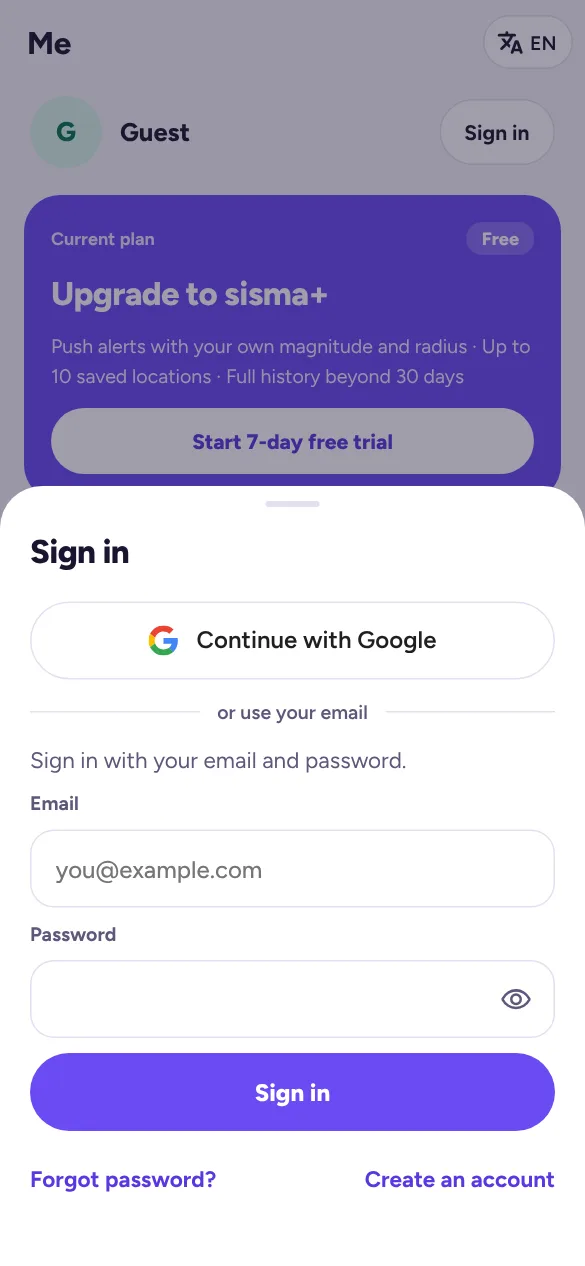
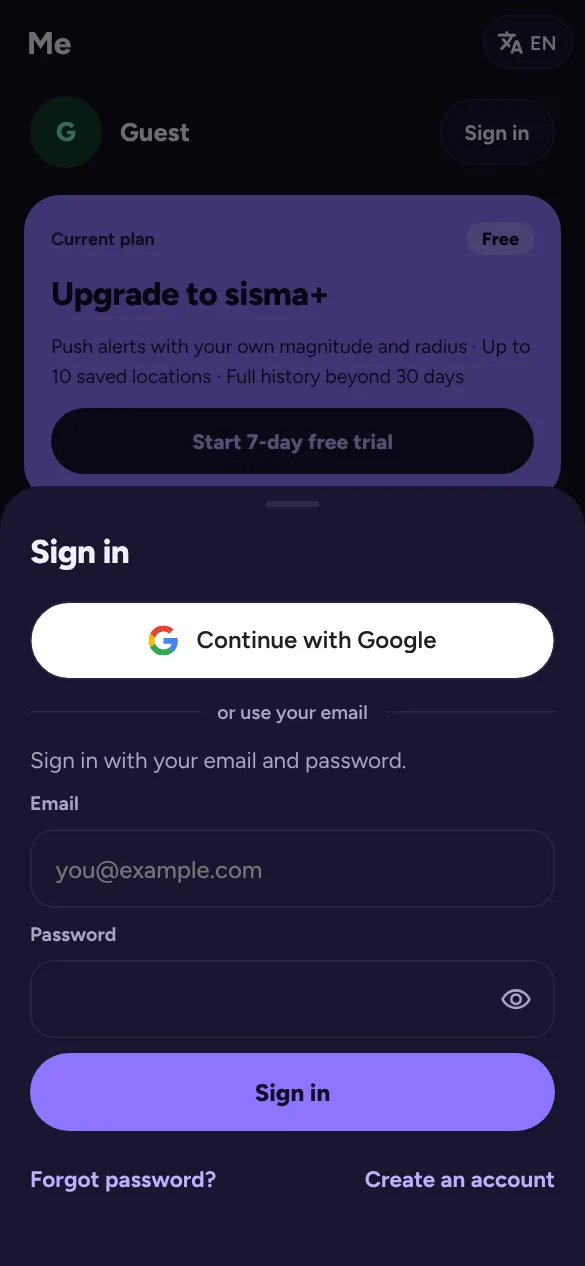
Go to Me and tap Sign in. You can use Google or your email and a password.
Create an account with email
- Tap Create an account at the bottom of the sign-in sheet.
- Enter your email and a password: at least 8 characters, with letters and numbers.
- Open the confirmation email we send you and tap the link. You are then signed in.
Sign in with Google
Tap Continue with Google. In the Android app, choose your Google account from the list that appears. If your Google email already has a sisma account, Google is added to that same account.
Forgot your password? Reset it
- In Me, tap Sign in and type your email address.
- Tap Forgot password?. You’ll see Check your email.
- Open the email and tap the link. sisma opens and asks you to Set a new password.
- Enter the new password twice and tap Save. You’re signed in.
For your privacy, sisma always says it sent the link, even if no account uses that address. If nothing arrives within a few minutes, check your spam folder and make sure you typed the address you signed up with.
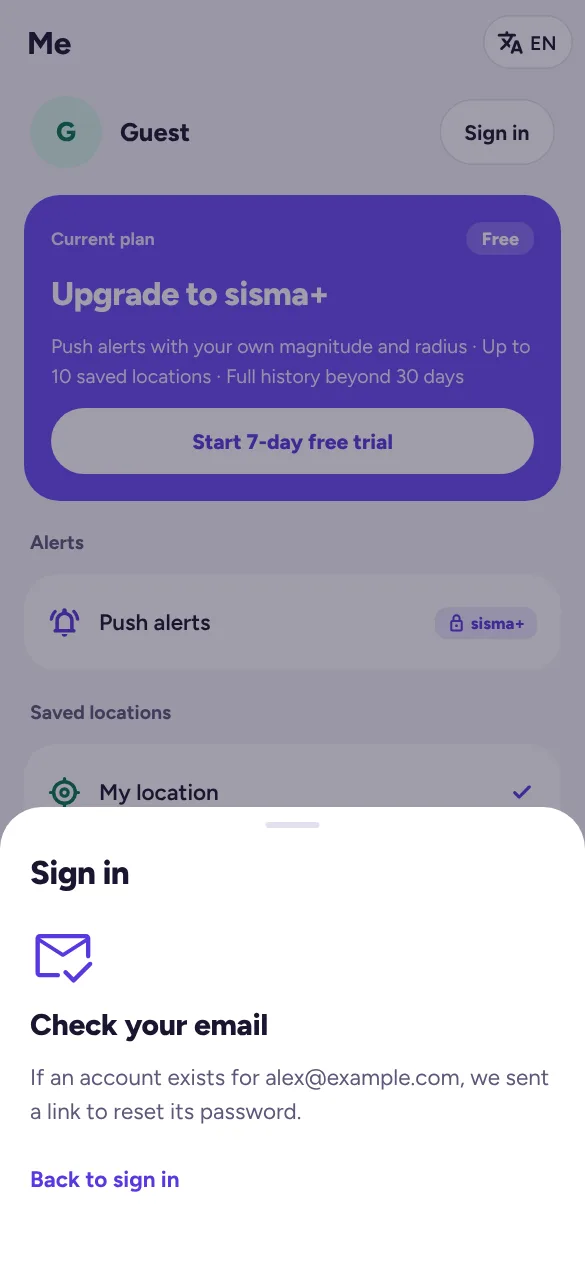
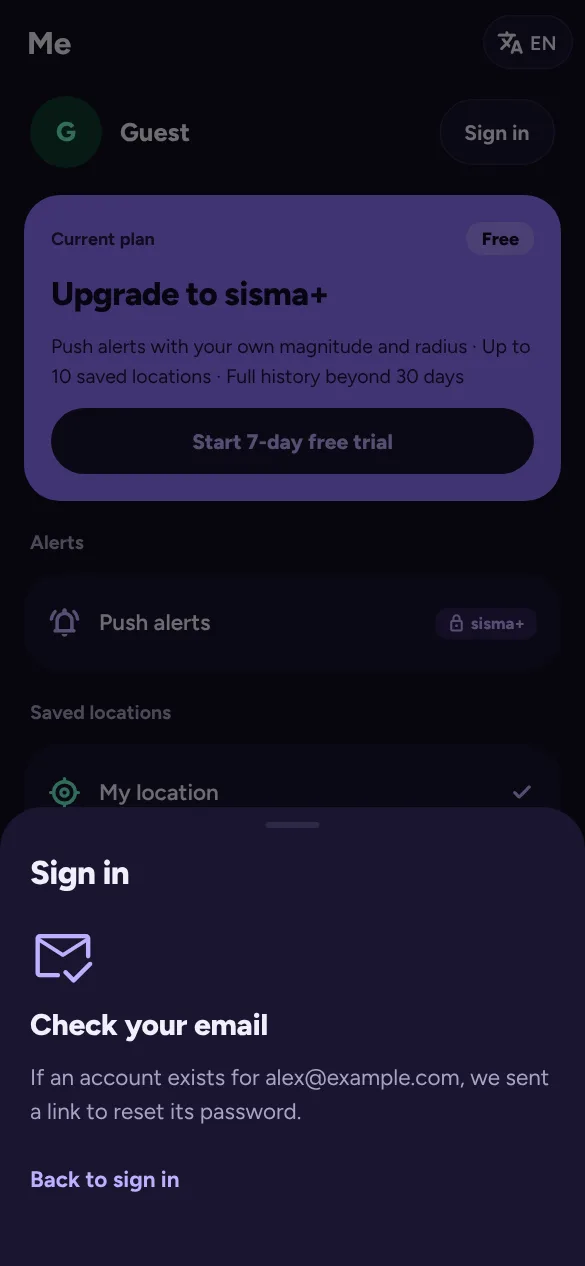
Change your password, or add one to a Google account
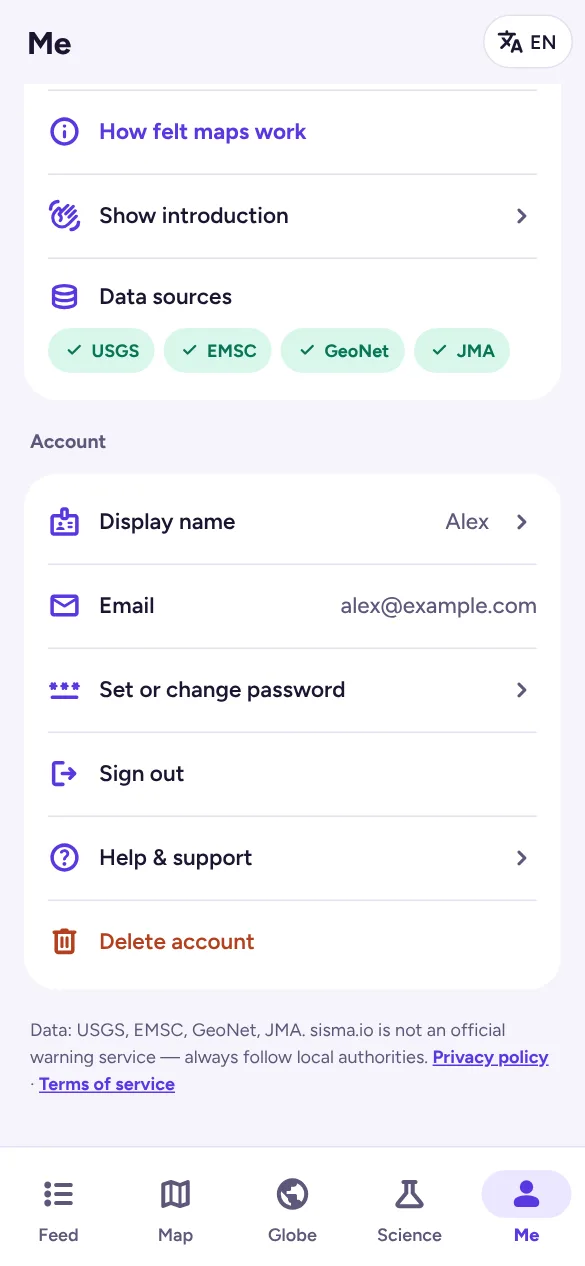
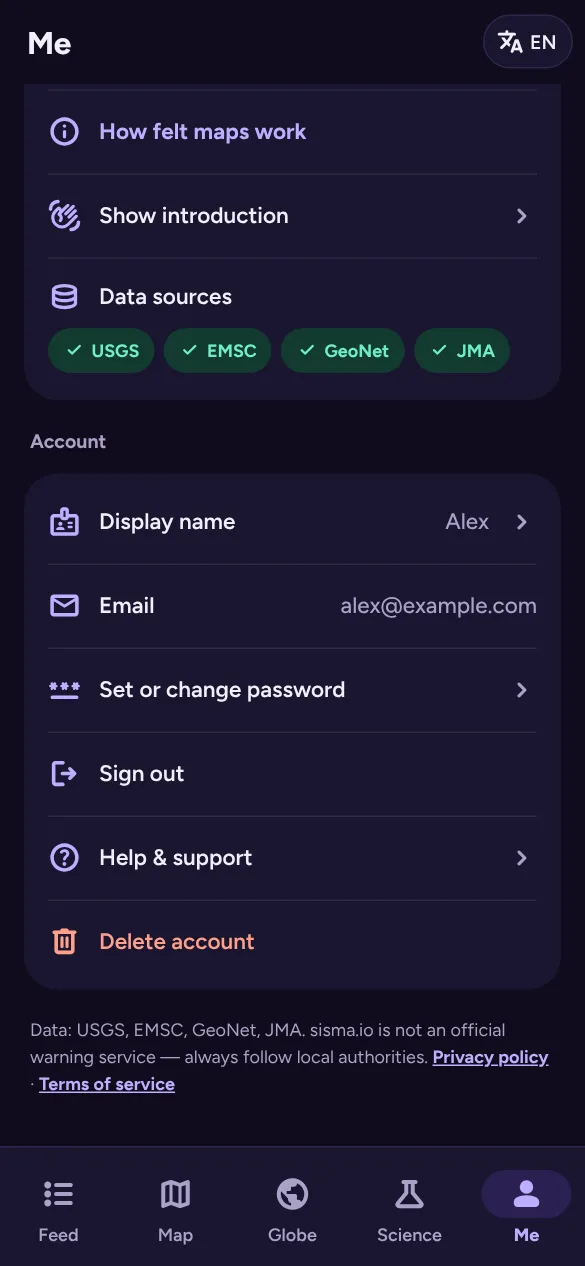
- In Me → Account, tap Set or change password.
- Enter the new password twice and tap Save.
If you signed up with Google, this adds a password so you can also sign in with your email. If sisma asks you to sign in again first, that’s a security check: sign out, sign back in and try again.
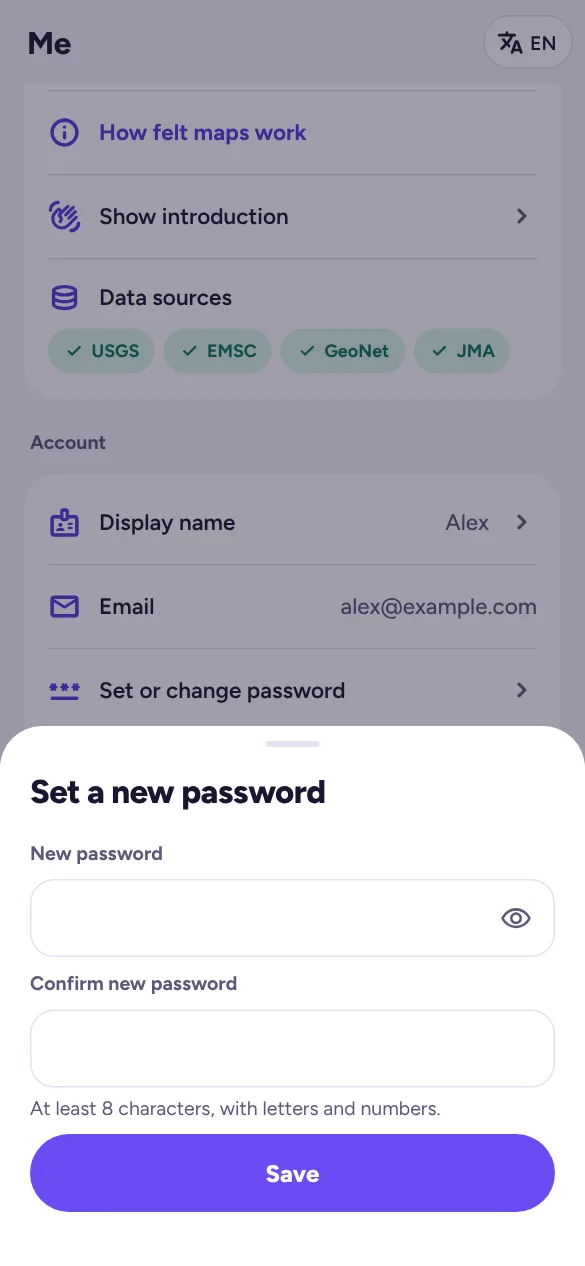
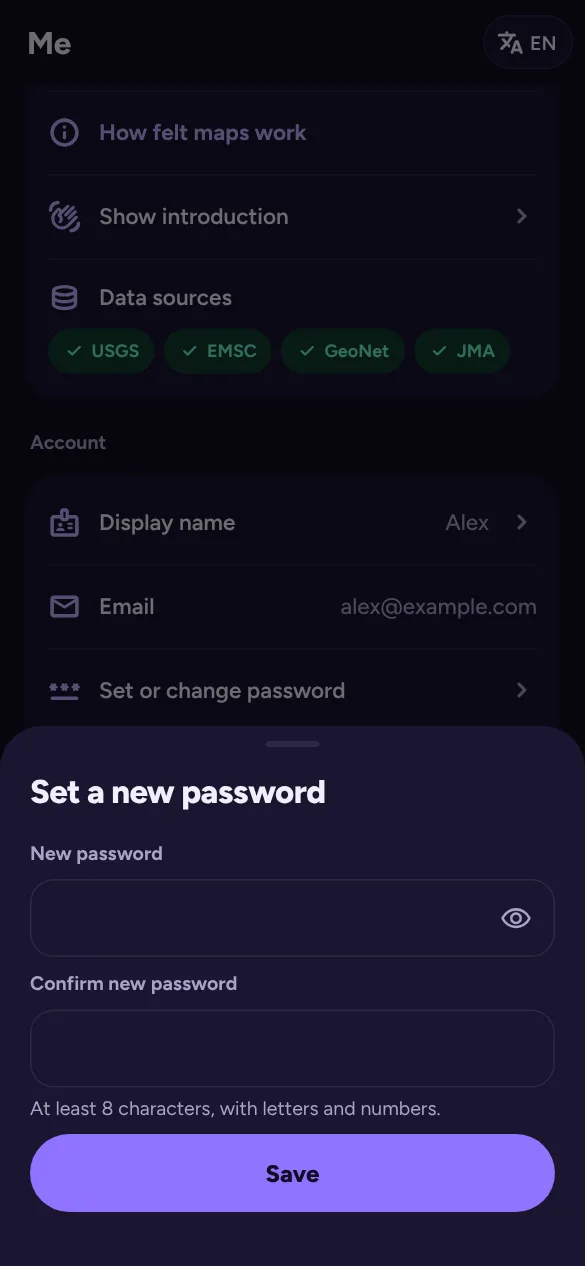
Other account tasks
- Display name: Me → Display name. Leave it empty to show your email.
- Sign out: Me → Sign out. Your saved locations stay in your account.
- Change your email address: this isn’t possible in the app yet. Write to support@sisma.io from your current address.
Delete your account
- If you have sisma+, cancel it first (see Cancel sisma+). sisma won’t delete an account with a subscription that is still renewing.
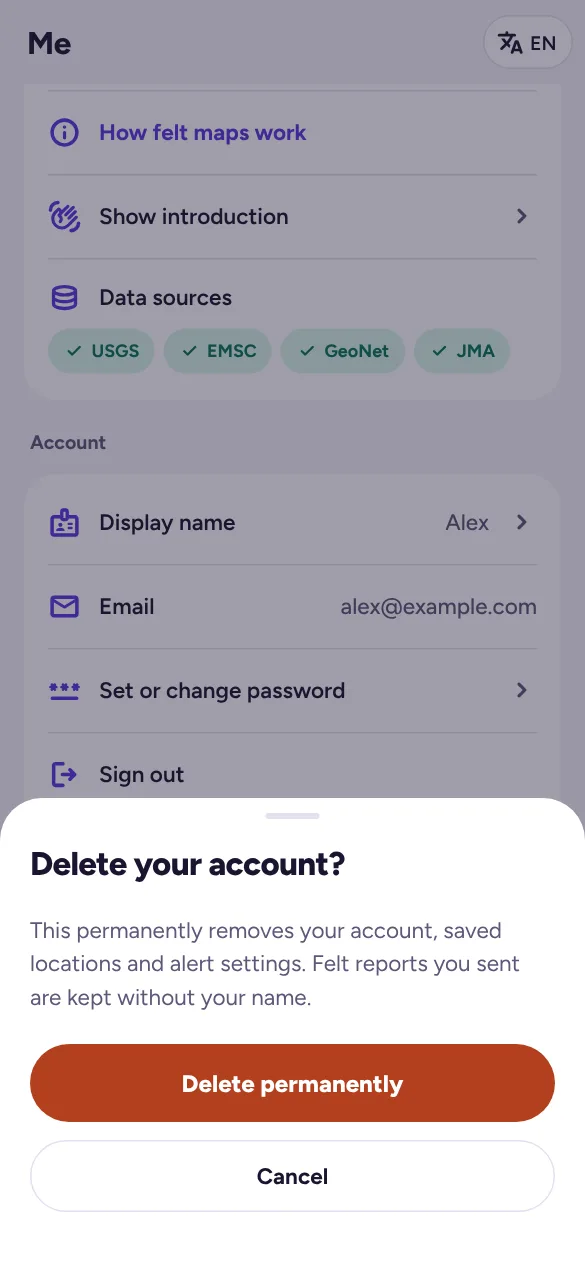
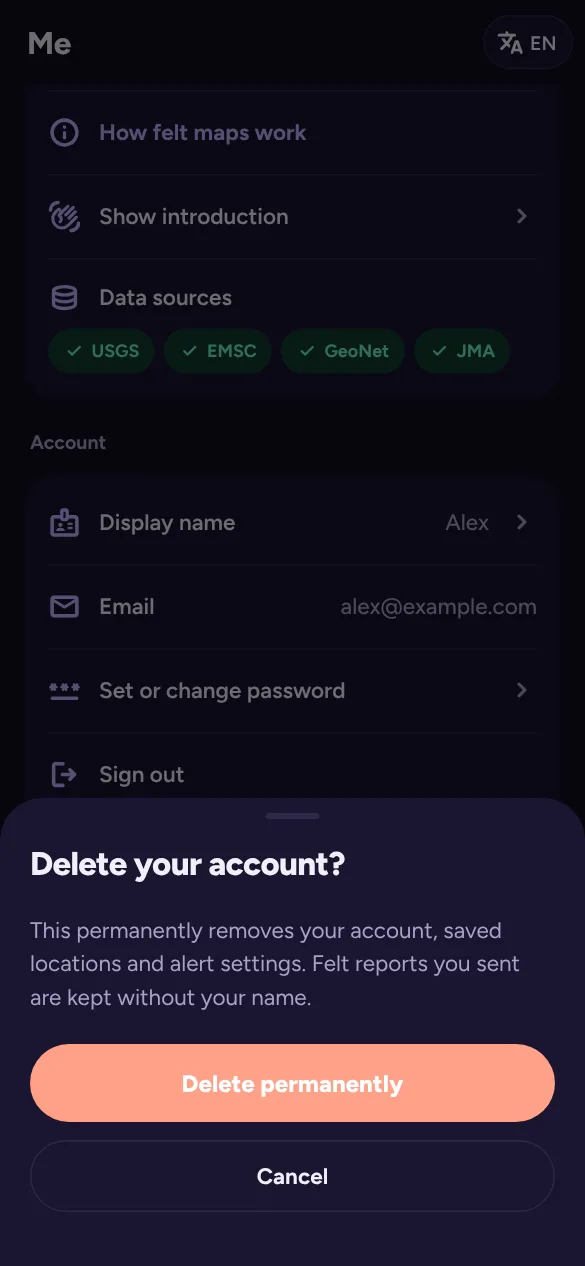
- In Me, tap Delete account, then Delete permanently.
This permanently removes your account, saved locations and alert settings. Felt reports you sent are kept without your name. Deleting the account doesn’t delete the Android app; uninstall it separately if you want to. Our privacy policy explains what happens to your data.